[WWDC26] Rev up your CarPlay app
이 글은 WWDC 세션의 transcript 와 영상 화면을 Claude Code 로 정리한 글이고, 실제로 쓴 날은 2026-11-25 다. Swift code 는 Xcode 27.0 의 iOS 27 simulator SDK header 를 보고 새로 써서 type check 했다.
세션 정보
- 세션: Rev up your CarPlay app
- 길이: 16분 20초
- 공개일: 2026-06-08
- 발표: Chris Whitney (Car Experience Engineer)
- 코드: 세션 page 의 snippet 3개 (전부 한 줄), sample project 는 없음
한 줄 요약
iOS 27 의 CarPlay 는 video app 이라는 category 를 새로 받고, 그 browsing 화면을 만들 수 있게 list template 에 thumbnail, overlay, 재생 진행 상태, details header 를 더했다. 여기에 모든 category 로 넓어진 voice control template, 자동으로 뜨는 MiniPlayer, navigation app 을 위한 panel 과 route sharing 이 함께 들어왔다.
세션의 구성
발표자 한 사람이 Landmarks 라는 sample 앱을 예로 slide 를 넘기다가, 중간에 Mac 의 CarPlay Simulator 로 같은 앱을 2분 반쯤 시연한다. code 는 거의 나오지 않고 “어떤 template 에 무엇이 생겼는가” 를 화면으로 보여 주는 세션이다.
| 순서 | 내용 | 발표 |
|---|---|---|
| 1 | CarPlay 가 받는 app category 와 video app | Chris Whitney |
| 2 | List template 의 thumbnail, overlay, 재생 진행 상태 | Chris Whitney |
| 3 | Details header 와 MiniPlayer | Chris Whitney |
| 4 | Voice control template 과 audio 처리 | Chris Whitney |
| 5 | CarPlay Simulator 시연 | Chris Whitney |
| 6 | Navigation app 의 panel 과 route sharing | Chris Whitney |
| 7 | CarPlay Simulator 와 다음 할 일 | Chris Whitney |
CarPlay 에 들어갈 수 있는 앱
CarPlay 는 아무 앱이나 올릴 수 있는 곳이 아니다. 정해진 category 에 맞는 앱이 그 category 의 entitlement 를 받아야 home screen 에 나온다. 세션은 그 목록에 무엇이 더해졌는지부터 짚는다.
App category
 출처: WWDC26 - Rev up your CarPlay app
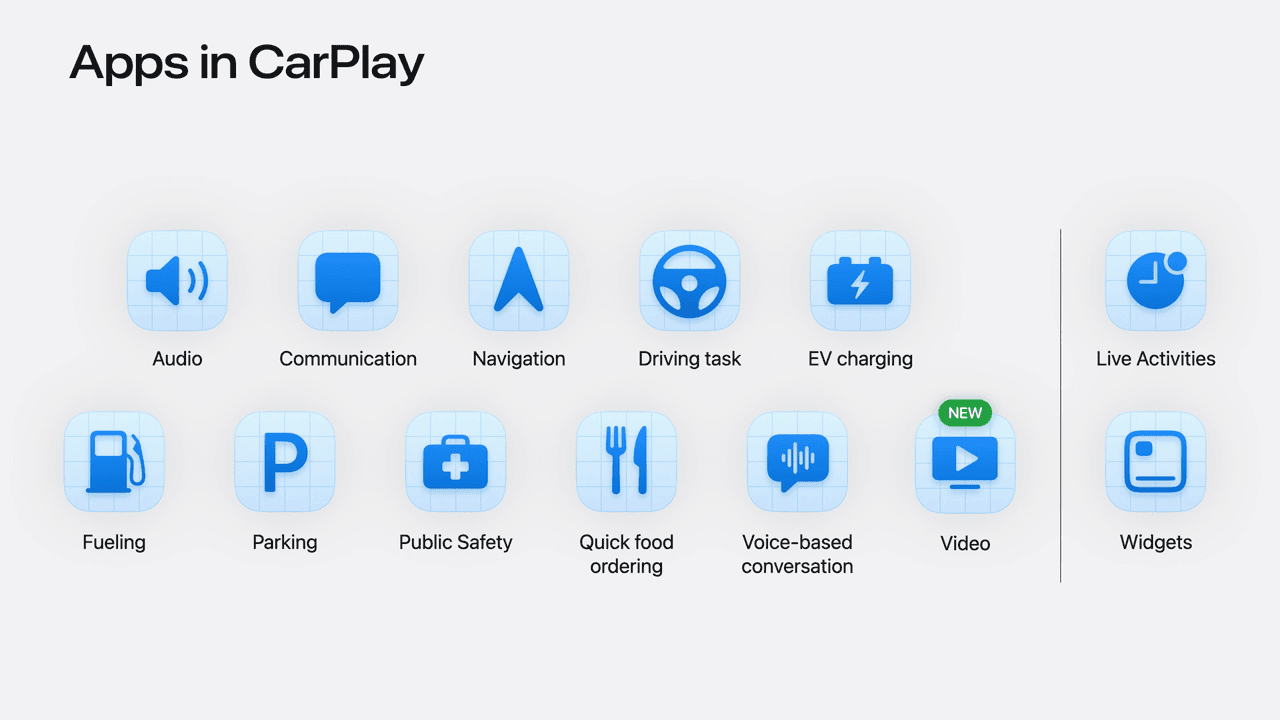
category 목록 slide 다. 왼쪽에 Audio, Communication, Navigation, Driving task, EV charging, Fueling, Parking, Public Safety, Quick food ordering, Voice-based conversation, Video 가 나열되고 Video 옆에 NEW 표시가 붙어 있다. 오른쪽에는 Live Activities 와 Widgets 가 따로 놓여 있는데, 이 둘은 category 와 무관하게 어떤 앱이든 CarPlay 에 내보낼 수 있다는 뜻이다.
발표자는 voice-based conversational app 이 올해 먼저 추가됐고, iOS 27 에서 video app 이 더해졌다고 말한다. video app 은 video in car 기능을 지원하는 새 차에서만 동작한다.
Video app 의 조건
 출처: WWDC26 - Rev up your CarPlay app
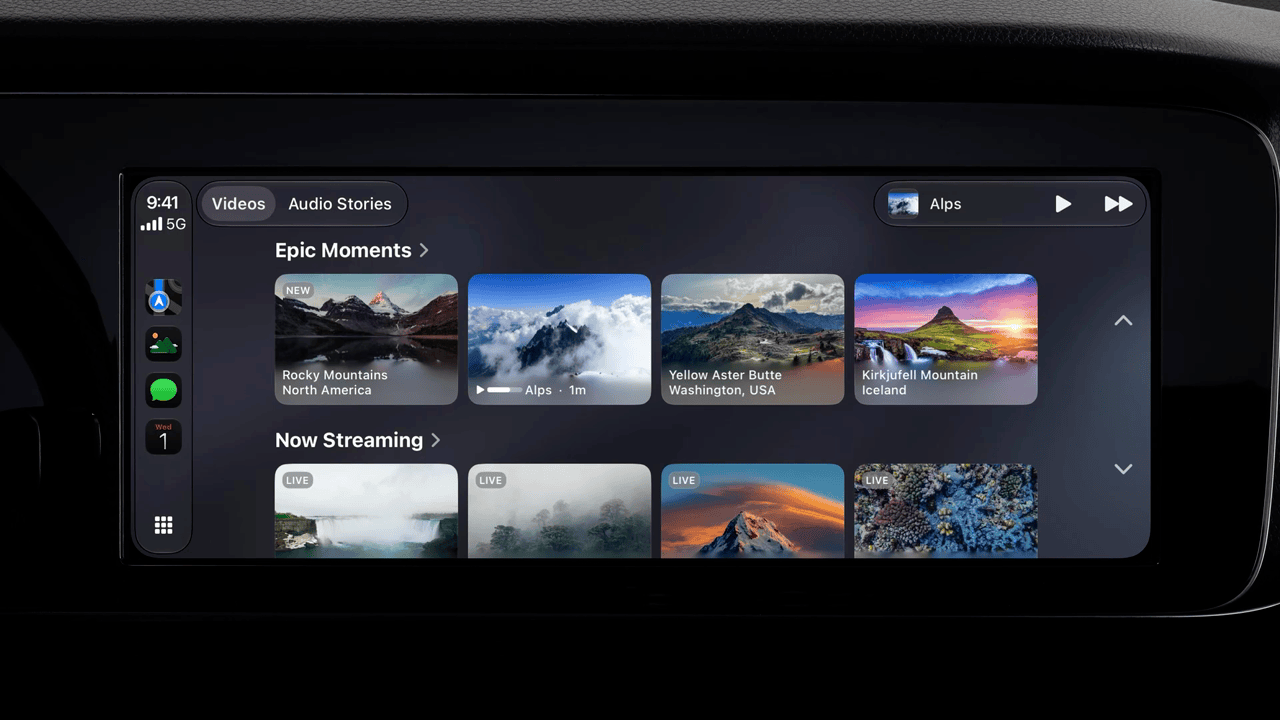
차 dashboard 화면에 Landmarks 앱의 video 목록이 떠 있는 장면이다. 가로로 넓은 thumbnail 이 줄지어 있고 운전자가 차 화면에서 볼 것을 고른다.
video 재생 자체는 새 기능이 아니다. AirPlay video streaming 을 지원하는 앱은 지금도 아무 변경 없이 정차 중에 CarPlay display 로 영상을 보낼 수 있다. iPhone 에서 재생 대상을 차 display 로 고르면 된다. iOS 27 의 video app 은 여기에 “차 화면에서 고르기” 를 더한 것이다. 조건은 둘이다.
- AirPlay video streaming 을 지원한다.
- CarPlay framework 로 browsing UI 를 만든다.
 출처: WWDC26 - Rev up your CarPlay app
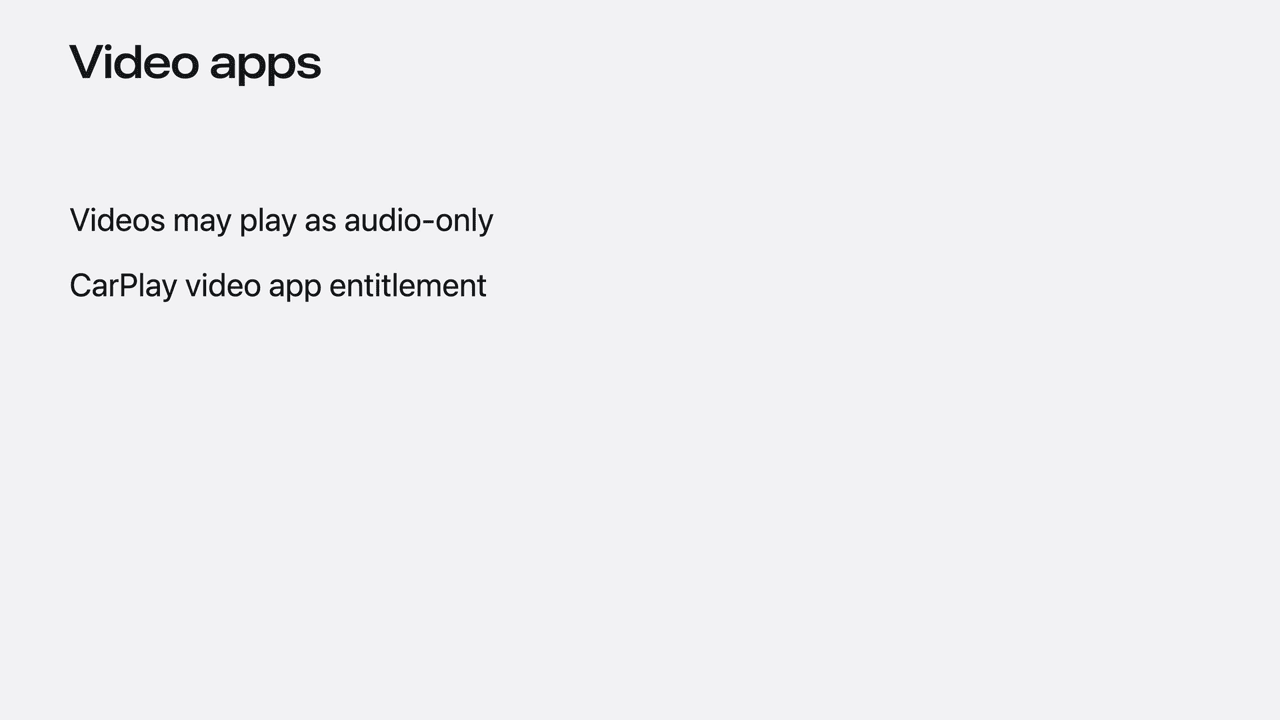
주의할 점을 적은 slide 다. “Videos may play as audio-only” 와 “CarPlay video app entitlement” 두 줄이 보인다. 발표자의 설명을 풀면 다음과 같다.
- 차가 지금 video 를 재생할 수 없다고 알리면 content 는 audio 만 재생된다. 주행 중이 대표적인 경우다.
- CarPlay video entitlement 만 가진 앱은 video in car 를 지원하는 차에서만 home screen 에 나온다.
- 소리만 들어도 되는 content 가 있다면 CarPlay audio app entitlement 를 같이 넣는다. 그러면 어느 차에서든 앱이 나온다.
podcast 에 영상이 딸린 앱이라면 세 번째가 해당한다. 둘 다 넣지 않으면 video 를 지원하지 않는 차의 사용자에게는 앱이 아예 보이지 않는다.
CarPlay framework 의 새 구성 요소
CarPlay 와 CarPlay Ultra 모두 앱 화면은 CarPlay framework 로 만든다. 세션의 절반이 이 framework 에 더해진 것들이다.
CarPlay template 이란?
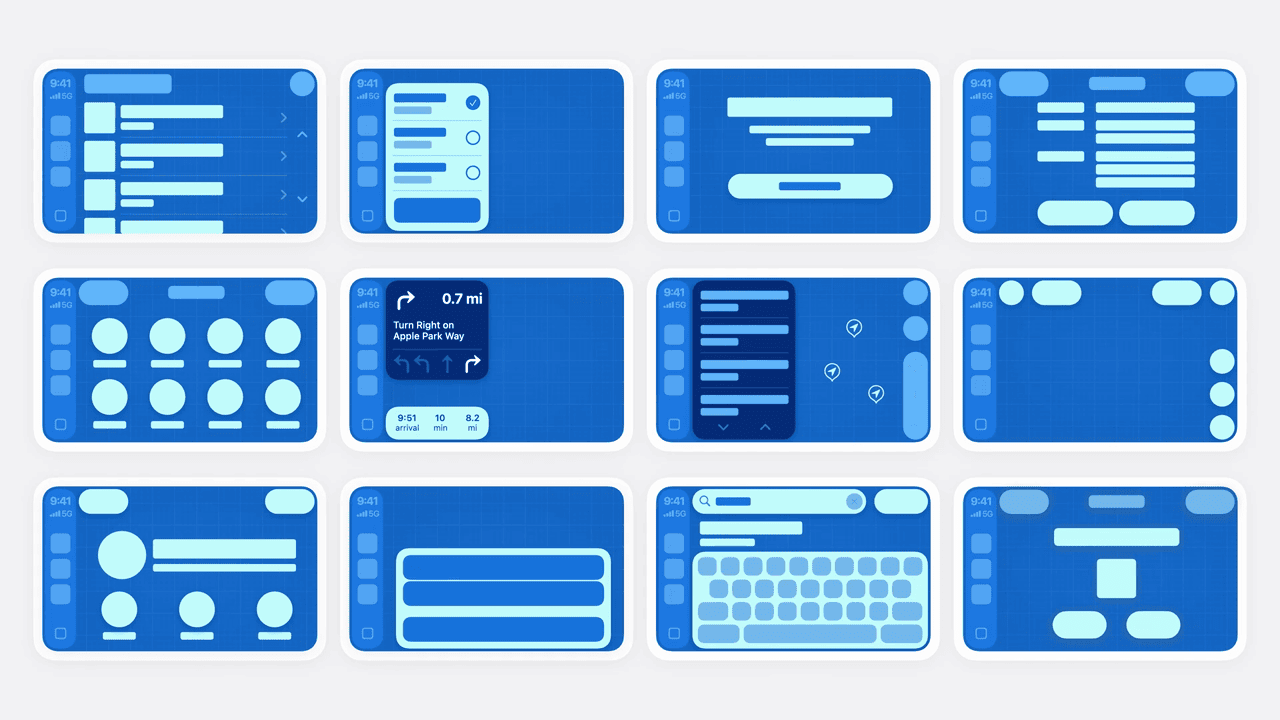
CarPlay 앱은 view 를 직접 그리지 않는다. list, grid, tab bar, now playing, map 같은 정해진 화면 틀에 data 를 채워 넘기면 iOS 가 그린다. 이 틀이 template 이다. 차마다 화면 해상도와 비율이 다르고 입력 장치도 touchscreen, knob, touch pad 로 제각각인데, template 을 쓰면 그 차이를 iOS 가 처리한다. 대신 앱이 정할 수 있는 것은 template 이 허용하는 범위로 제한된다.
 출처: WWDC26 - Rev up your CarPlay app
template 12종을 격자로 늘어놓은 slide 다. 어떤 category 의 앱이 어떤 template 을 쓸 수 있는지는 entitlement 가 정한다. 문서는 CarPlay 에 있다.
sample 앱 Landmarks 는 audio story 목록을 가진 audio app 이고, 세션은 여기에 videos tab 을 더하는 과정을 따라간다. 차가 video 를 지원하는지는 CPSessionConfiguration 으로 확인한다.
1
2
3
4
5
6
7
8
9
10
11
12
13
14
import CarPlay

@MainActor
func makeRootTemplate(
    configuration: CPSessionConfiguration,
    videos: CPListTemplate,
    audioStories: CPListTemplate
) -> CPTabBarTemplate {
    var tabs: [CPTemplate] = [audioStories]
    if configuration.supportsVideoPlayback {
        tabs.insert(videos, at: 0)
    }
    return CPTabBarTemplate(templates: tabs)
}
supportsVideoPlayback
연결된 차가 video 재생을 지원하는지 알려 준다. header 의 설명으로는 한 CarPlay session 동안 이 값은 바뀌지 않지만, 실제로 지금 video 를 틀 수 있는지는 언제든 바뀔 수 있다. 지원 여부와 “지금 가능한지” 가 별개라는 뜻이고, 앞에서 본 audio-only 재생이 그 경우다. iOS 26.4 부터 있다. 문서는 supportsVideoPlayback 에 있다.
세션은 이 확인 과정을 말로만 설명했다. 위 code 는 그 설명을 header 에 맞춰 옮긴 것이다.
Thumbnail 과 overlay
video 목록은 글자만으로는 고르기 어렵다. list template 의 image row 가 portrait 와 landscape 비율의 이미지를 받게 됐고, 그 위에 정보를 얹을 수 있게 됐다.
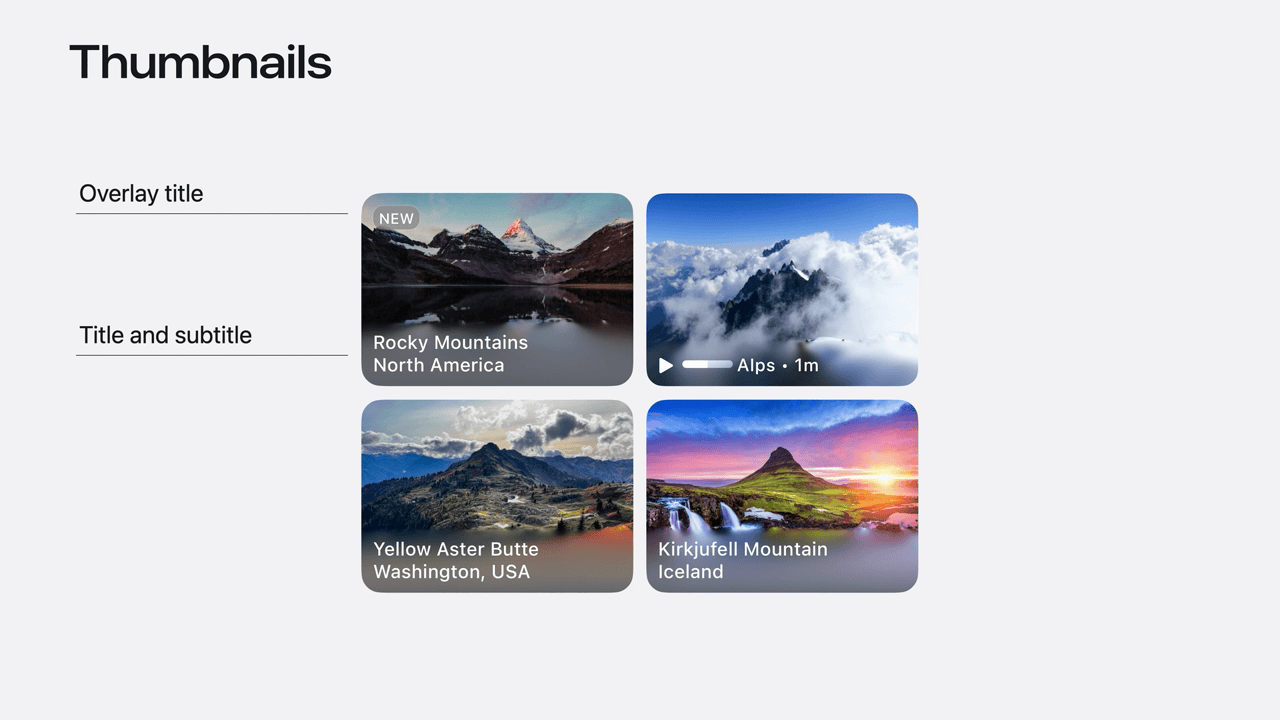 출처: WWDC26 - Rev up your CarPlay app
card element 하나를 확대한 slide 다. thumbnail 위에 “Overlay title”, 아래에 “Title and subtitle” 이라는 label 이 붙어 있다. overlay 는 “NEW” 나 “LIVE” 같은 짧은 글자일 수도 있고 이미지 badge 일 수도 있다.
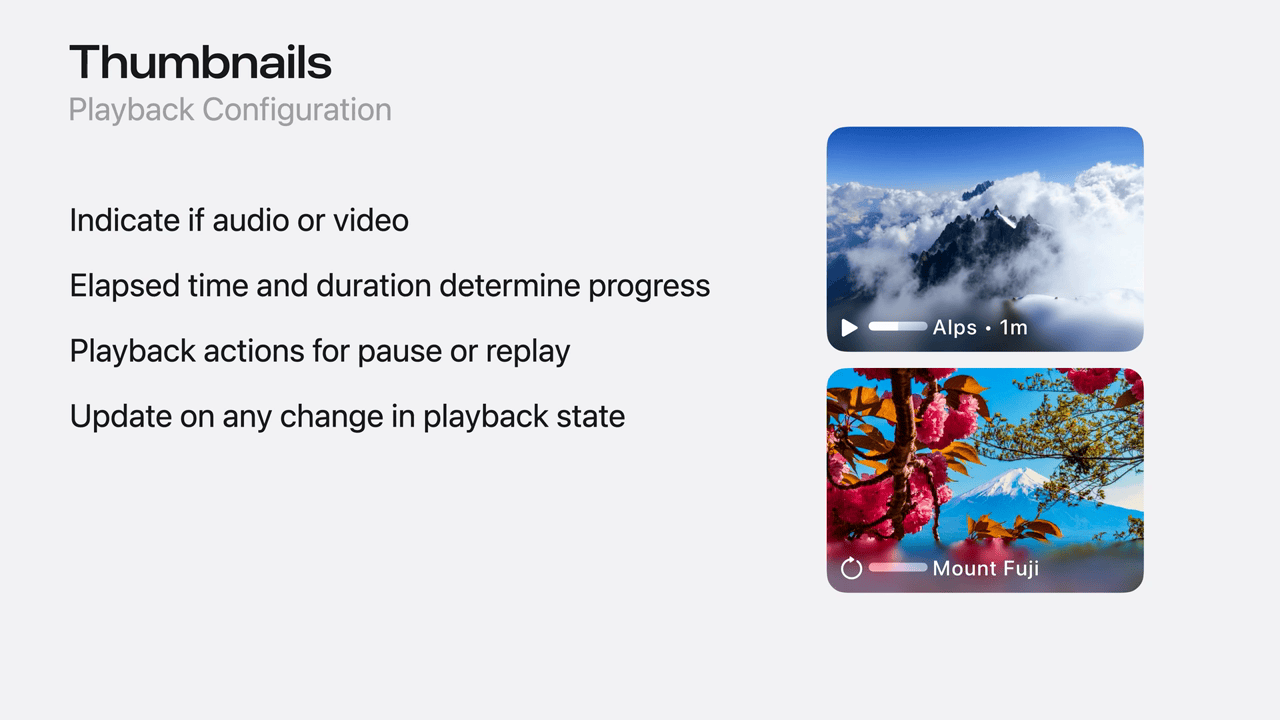 출처: WWDC26 - Rev up your CarPlay app
playback configuration 을 설명하는 slide 다. bullet 네 개와 함께 Alps, Mount Fuji 두 card 가 예시로 놓여 있다. thumbnail 아래쪽에 진행 막대가 보인다. 발표자가 든 항목은 다음과 같다.
- preferred presentation: 이 item 이 video 인지 audio 인지
- elapsed time 과 duration: 둘로 progress bar 가 그려진다
- playback action: play, pause, replay 중 무엇을 보여 줄지
- 재생 상태가 바뀔 때마다 configuration 을 새로 넣어 갱신한다
1
2
3
4
5
6
7
8
9
10
11
12
13
14
15
16
17
18
19
20
21
22
23
24
25
26
27
28
29
30
31
32
33
34
35
import CarPlay
import CoreMedia
import UIKit

struct Landmark {
    let title: String
    let region: String
    let summary: String
    let image: UIImage
    let elapsed: Double
    let duration: Double
    let isNew: Bool
}

@MainActor
func makeCard(for landmark: Landmark) -> CPListImageRowItemCardElement {
    let overlay: CPImageOverlay? = landmark.isNew
        ? CPImageOverlay(text: "NEW", textColor: .white, backgroundColor: .systemBlue, alignment: .leading)
        : nil
    let thumbnail = CPThumbnailImage(image: landmark.image, imageOverlay: overlay, sportsOverlay: nil)

    let card = CPListImageRowItemCardElement(
        thumbnail: thumbnail,
        title: landmark.title,
        subtitle: landmark.region,
        tintColor: nil
    )
    card.playbackConfiguration = CPPlaybackConfiguration(
        preferredPresentation: .video,
        playbackAction: .play,
        elapsedTime: CMTime(seconds: landmark.elapsed, preferredTimescale: 600),
        duration: CMTime(seconds: landmark.duration, preferredTimescale: 600)
    )
    return card
}
CPThumbnailImage
이미지 하나에 overlay 를 묶는 type 이다. init(image:) 만 쓰면 overlay 없는 thumbnail 이고, init(image:imageOverlay:sportsOverlay:) 로 둘 중 하나를 얹는다. 문서는 CPThumbnailImage 에 있다.
CPImageOverlay
thumbnail 위에 얹는 badge 다. 글자와 색을 주는 init 과 이미지를 주는 init 이 따로 있고, 위치는 leading, center, trailing 중에서 고른다. 문서는 CPImageOverlay 에 있다.
CPPlaybackConfiguration
재생 진행 상태를 담는다. 시간은 CMTime 으로 주고, header 는 live content 라면 duration 을 0 으로 두라고 적는다. preferredPresentation 이 .video 여도 차가 video 를 틀 수 없으면 now playing 화면으로 간다. CPListItem, image row 의 element, details header 가 모두 playbackConfiguration property 를 가진다. 문서는 CPPlaybackConfiguration 에 있다.
CPListImageRowItemCardElement
image row 안에 들어가는 card 한 장이다. type 자체는 iOS 26.0 부터 있었고, thumbnail 을 받는 init 이 26.4 에 더해졌다. 문서는 CPListImageRowItemCardElement 에 있다.
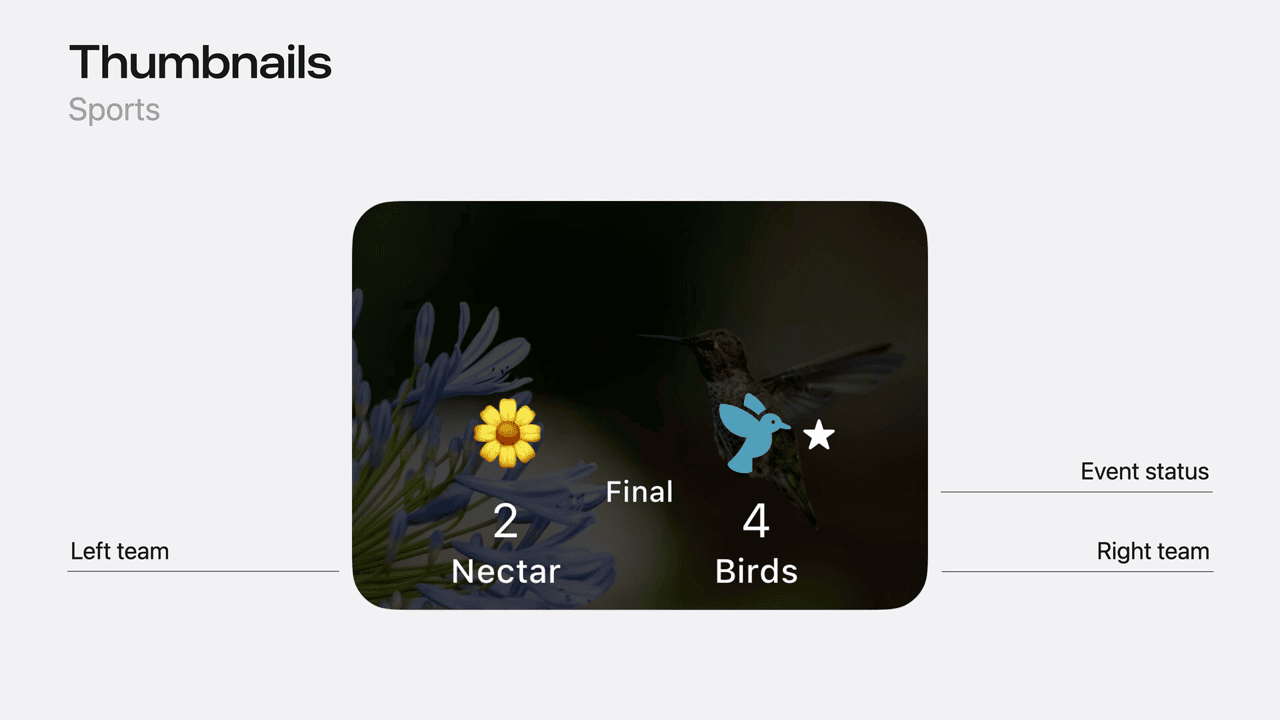 출처: WWDC26 - Rev up your CarPlay app
sports overlay 의 예다. thumbnail 위에 “Nectar 2”, “Final”, “Birds 4” 가 한 줄로 얹혀 있다. 왼쪽 팀, 경기 상태, 오른쪽 팀 순서다. 이것은 CPSportsOverlay 로 만들고, 팀과 경기 상태는 now playing template 이 쓰던 CPNowPlayingSportsTeam 과 CPNowPlayingSportsEventStatus 를 그대로 받는다.
Details header
목록에서 item 하나를 골랐을 때 보여 줄 화면이 필요하다. 지금까지는 list 를 한 번 더 push 하는 수밖에 없었는데, list template 맨 위에 item 하나를 크게 보여 주는 header 가 생겼다. 발표자는 현재 episode 나 영화 요약을 예로 든다.
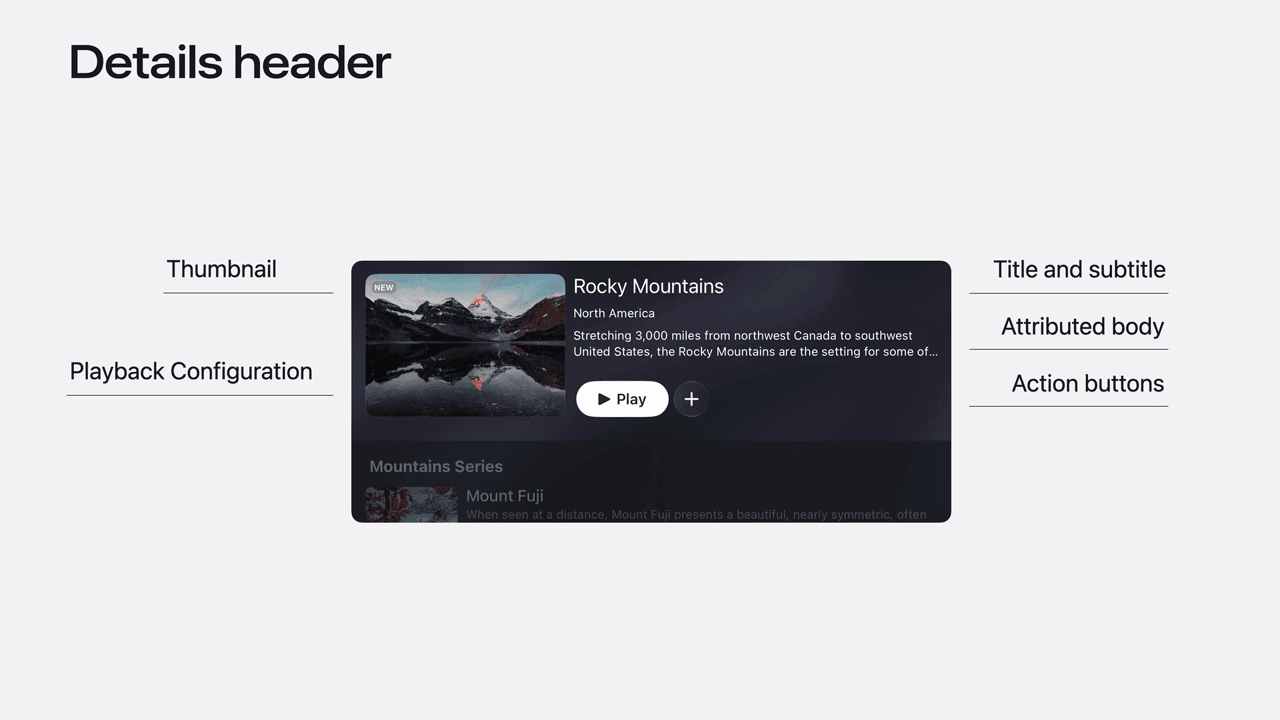 출처: WWDC26 - Rev up your CarPlay app
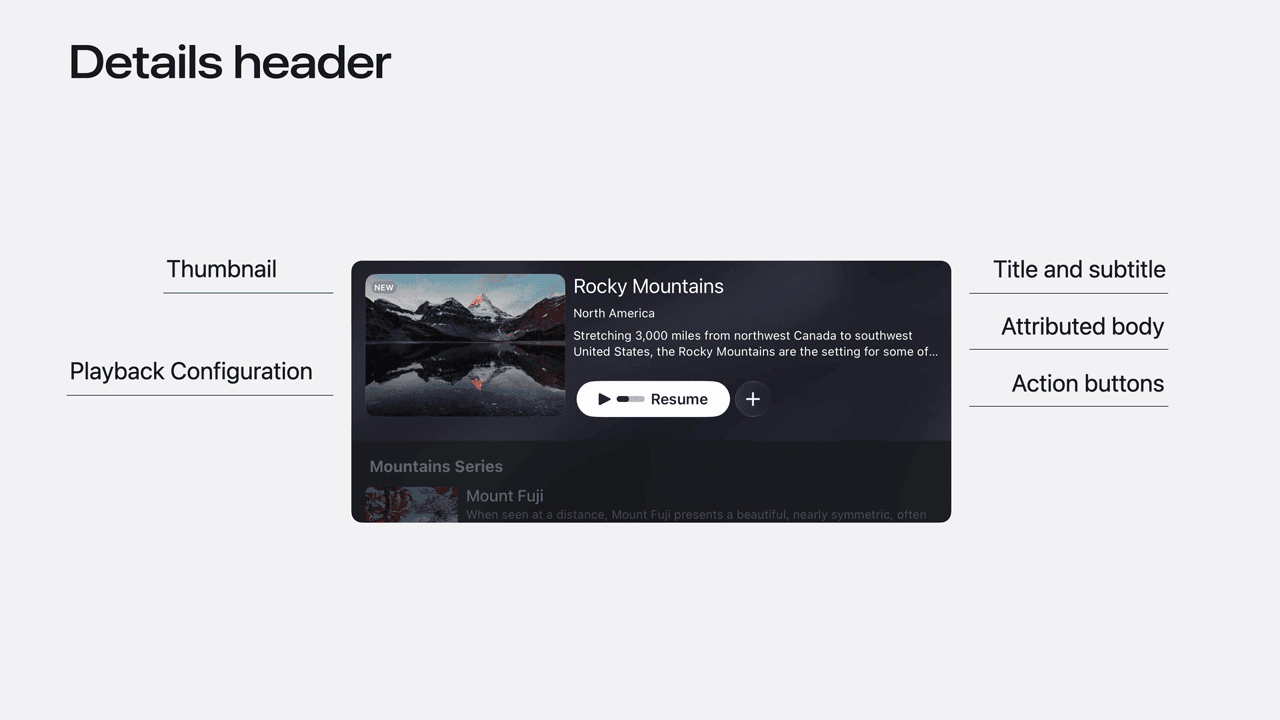
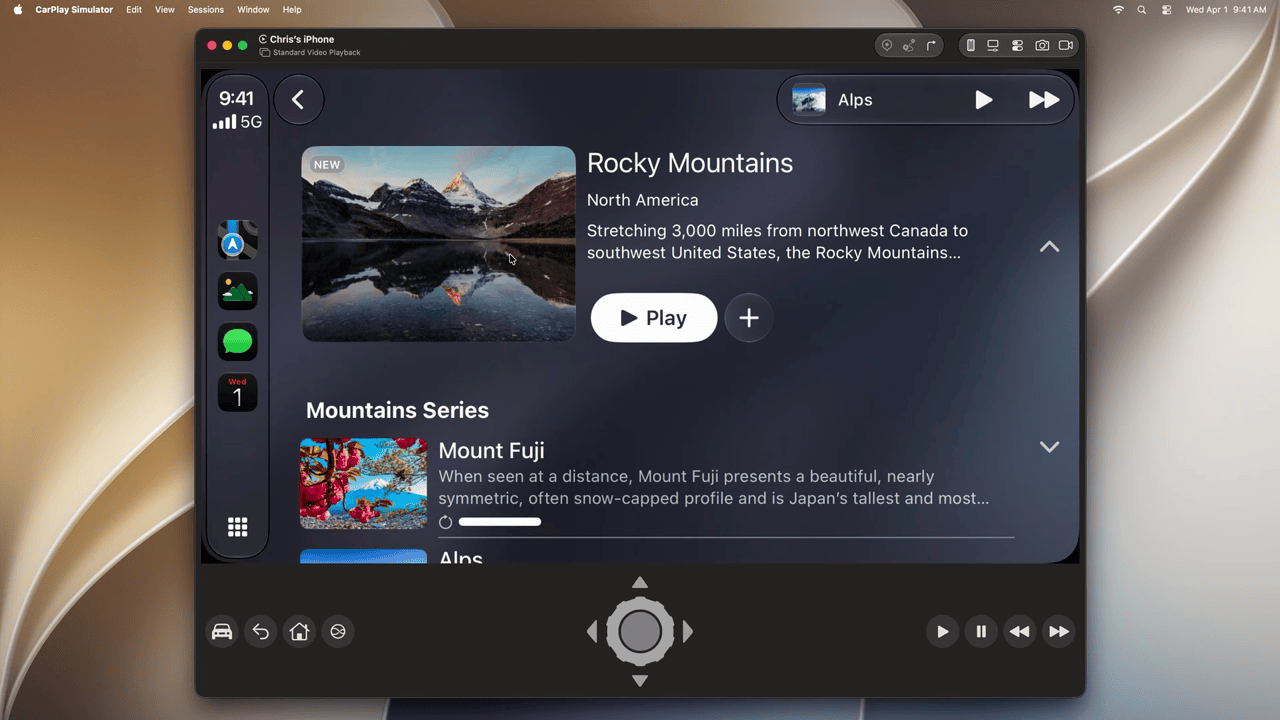
header 의 구성을 짚는 slide 다. 왼쪽에 “NEW” overlay 가 붙은 thumbnail, 오른쪽에 title “Rocky Mountains”, subtitle “North America”, 그리고 “Stretching 3,000 miles from northwest Canada to southwest United States, the Rocky Mountains are the setting for some of…” 로 잘리는 본문이 있다. 그 아래에 “Play” button 과 “+” button 이 놓이고, header 밑으로 “Mountains Series” 라는 section 이 이어진다.
 출처: WWDC26 - Rev up your CarPlay app
같은 header 에 playback configuration 을 넣은 모습이다. 첫 번째 button 이 “Resume” 으로 바뀌고 진행 상태가 button 과 한 덩어리로 표시된다. 앱이 button 제목을 고쳐 쓴 것이 아니라 configuration 의 진행 상태가 첫 action button 과 자동으로 합쳐진 결과다.
1
2
3
4
5
6
7
8
9
10
11
12
13
14
15
16
17
18
19
20
21
22
23
24
25
26
27
@MainActor
func makeDetailTemplate(for landmark: Landmark, related: CPListSection) -> CPListTemplate {
    let play = CPButton(image: UIImage(systemName: "play.fill")!) { _ in
        // AirPlay video streaming 시작
    }
    play.title = "Play"

    let header = CPListTemplateDetailsHeader(
        thumbnail: CPThumbnailImage(image: landmark.image),
        title: landmark.title,
        subtitle: landmark.region,
        bodyVariants: [NSAttributedString(string: landmark.summary)],
        actionButtons: [play]
    )
    header.playbackConfiguration = CPPlaybackConfiguration(
        preferredPresentation: .video,
        playbackAction: .play,
        elapsedTime: CMTime(seconds: landmark.elapsed, preferredTimescale: 600),
        duration: CMTime(seconds: landmark.duration, preferredTimescale: 600)
    )
    return CPListTemplate(
        title: landmark.title,
        listHeader: header,
        sections: [related],
        assistantCellConfiguration: nil
    )
}
CPListTemplateDetailsHeader
thumbnail, title, subtitle, 본문, action button 을 받는다. 본문은 NSAttributedString 의 배열이라 길이가 다른 variant 를 여러 개 넣을 수 있고, 화면 폭에 맞는 것이 골라진다. button 의 최대 개수와 크기는 maximumActionButtonCount, maximumActionButtonSize 로 물어본다. 문서는 CPListTemplateDetailsHeader 에 있다.
code 를 쓰면서 걸린 곳이 하나 있다. actionButtons 의 type 은 [CPButton] 인데 CPButton 의 init 은 이미지를 받는 init(image:handler:) 하나뿐이다. 글자 button 을 만드는 CPTextButton 은 CPButton 의 subclass 가 아니어서 넣을 수 없다. 그래서 위 code 는 이미지로 만든 뒤 title 을 따로 넣었다.
MiniPlayer
 출처: WWDC26 - Rev up your CarPlay app
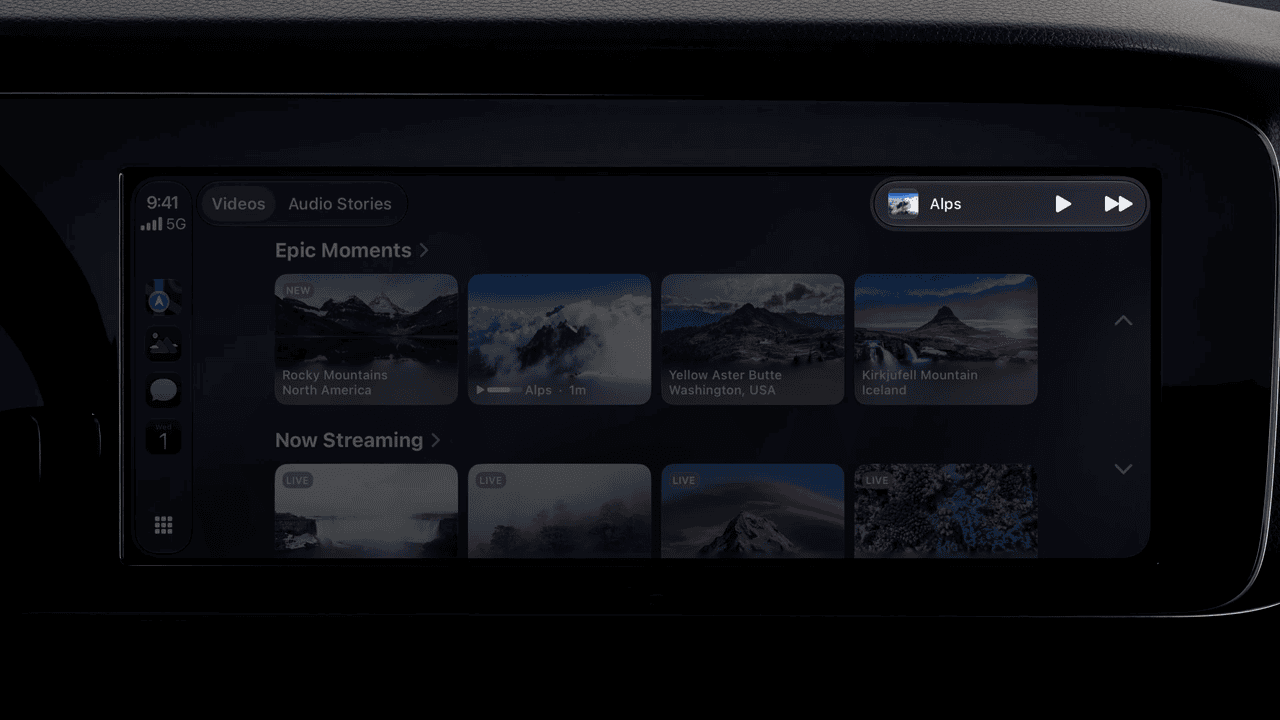
화면 오른쪽 위의 MiniPlayer 만 밝게 남기고 나머지를 어둡게 한 slide 다. 지금 재생 중인 item 의 artwork 와 제목, 재생 control 이 작은 띠 안에 들어 있다.
MiniPlayer 는 iOS 27 에서 새로 생겼고, now playing 을 보여 주는 앱이면 아무것도 하지 않아도 자동으로 나온다. display 가 넓으면 play, pause, skip button 까지 표시된다. 화면 위쪽 공간을 browsing 에 다 쓰고 싶다면 끌 수 있다.
1
CPNowPlayingTemplate.shared.allowsMiniPlayer = false
allowsMiniPlayer
기본값은 true 다. false 로 두면 MiniPlayer 대신 navigation bar 에 now playing icon 이 나온다. iOS 27.0 부터 있다. 문서는 allowsMiniPlayer 에 있다.
Voice control template
voice control template 은 “듣는 중”, “처리 중” 같은 음성 대화의 상태를 보여 주는 화면이다. 지금까지는 일부 category 만 쓸 수 있었는데 iOS 27 부터 모든 category 에 열렸다.
 출처: WWDC26 - Rev up your CarPlay app
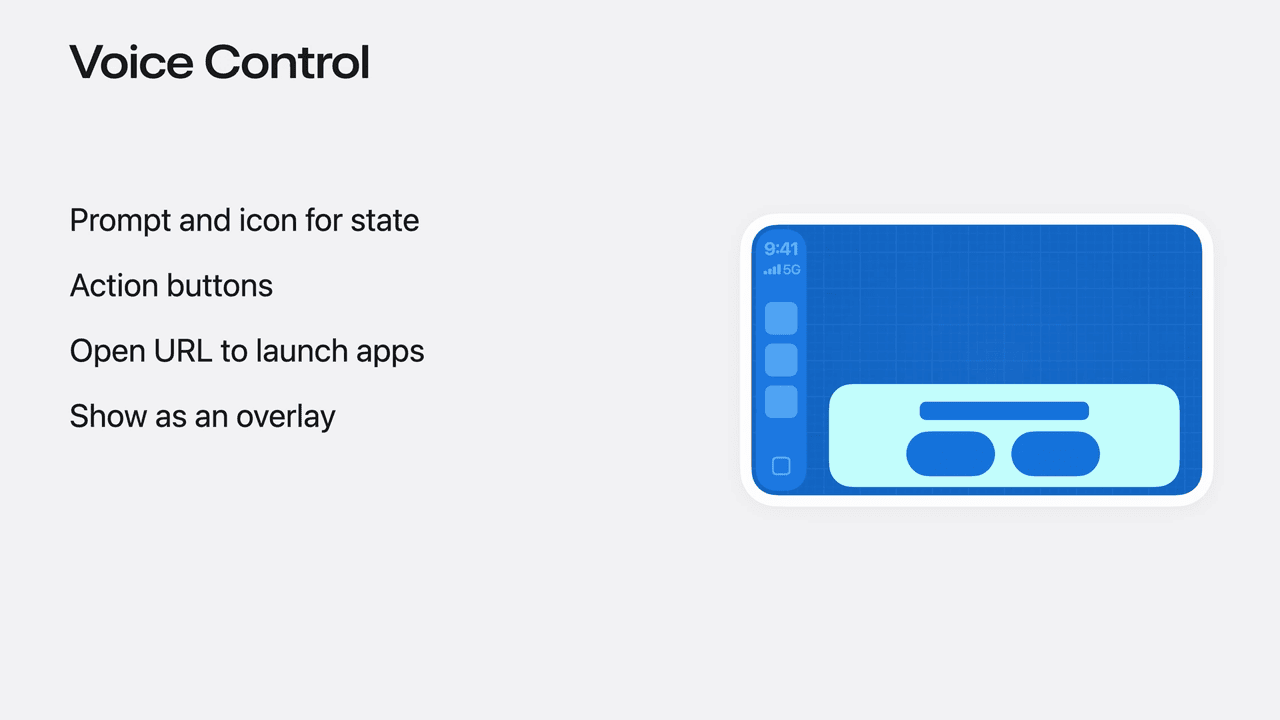
voice control template 의 새 기능을 적은 slide 다. bullet 네 개 옆에 overlay 로 뜬 template 의 도식이 그려져 있다. 발표자의 설명은 이렇다.
- prompt 글자와 움직이는 icon 을 보여 준다. 둘 다 생략할 수 있다.
- action button 을 최대 2개 넣고, navigation bar 의 leading 과 trailing 에도 button 을 둔다.
- 대화 결과로 길안내를 시작하거나 전화를 걸어야 하면
CPTemplateApplicationScene으로 URL 을 열어 CarPlay 가 처리하게 한다. - 화면 전체를 덮지 않고 overlay 로 띄울 수 있다. overlay 는 공간이 좁으니 짧은 글자 variant 를 같이 준다.
1
2
3
4
5
6
7
8
9
10
11
@MainActor
func showListening(on interfaceController: CPInterfaceController) {
    let listening = CPVoiceControlState(
        identifier: "listening",
        titleVariants: ["Listening…", "Listening"],
        image: nil,
        repeats: true
    )
    let template = CPVoiceControlTemplate(voiceControlStates: [listening])
    interfaceController.showOverlayTemplate(template, animated: true) { _, _ in }
}
showOverlayTemplate(_:animated:completion:)
지금 보이는 template 위에 다른 template 을 overlay 로 얹는다. header 의 설명으로는 overlay 로 띄울 수 있는 것은 CPVoiceControlTemplate 뿐이고 한 번에 하나만 뜬다. 내릴 때는 hideOverlayTemplate(animated:completion:) 을 쓴다. iOS 27.0 부터 있다. 문서는 [showOverlayTemplate(:animated:completion:)](https://developer.apple.com/documentation/carplay/cpinterfacecontroller/showoverlaytemplate%28:animated:completion:%29){:target=”_blank”} 에 있다.
CPVoiceControlTemplate
state 를 최대 5개까지 미리 넣어 두고 activateVoiceControlState(withIdentifier:) 로 바꿔 가며 보여 준다. state 의 actionButtons 와 template 의 navigation bar button 은 iOS 26.4 에 더해졌다. 문서는 CPVoiceControlTemplate 에 있다.
 출처: WWDC26 - Rev up your CarPlay app
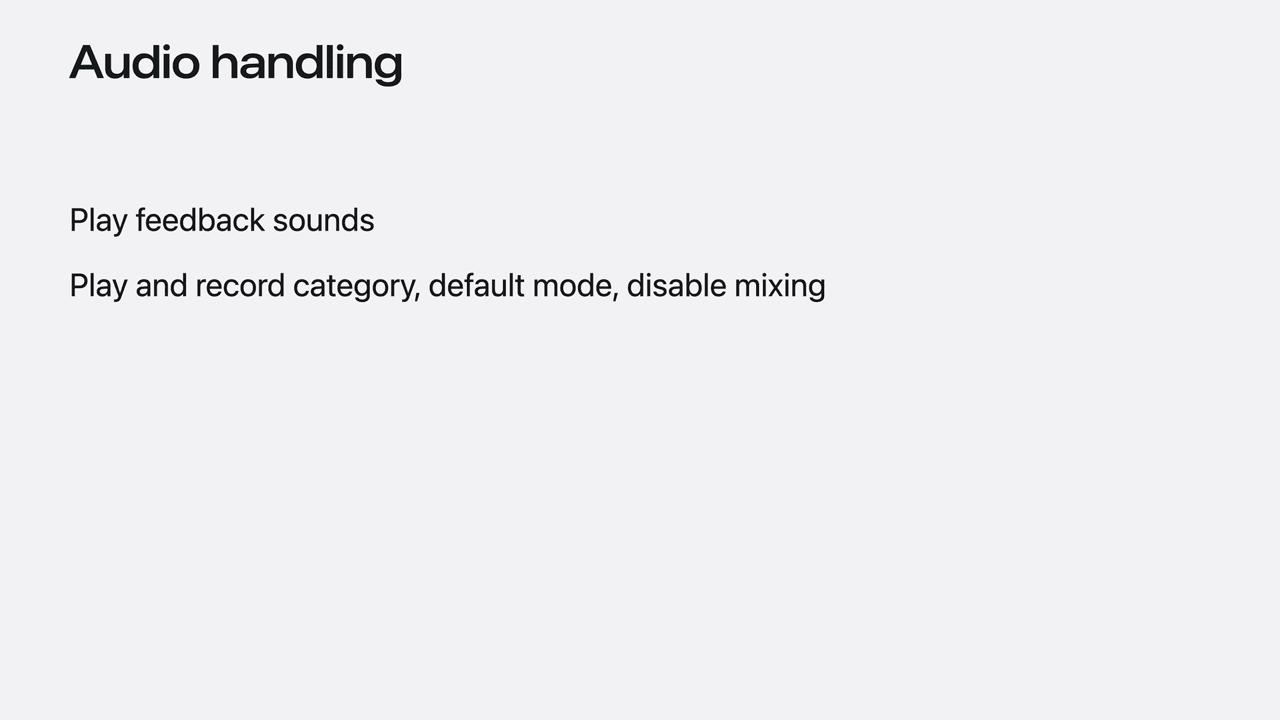
audio 처리에 대한 slide 다. 음성 대화 앱은 화면보다 소리가 먼저다. 발표자가 권한 것은 두 가지다.
- 기다리는 중과 처리 중에 feedback sound 를 낸다. 운전자는 화면을 보지 않는다.
AVAudioSession은 play and record category 에 default mode 로 두고, 다른 audio 와 섞이는 mixing 은 끈다.
Template 별 사용 가능 범위
 출처: WWDC26 - Rev up your CarPlay app
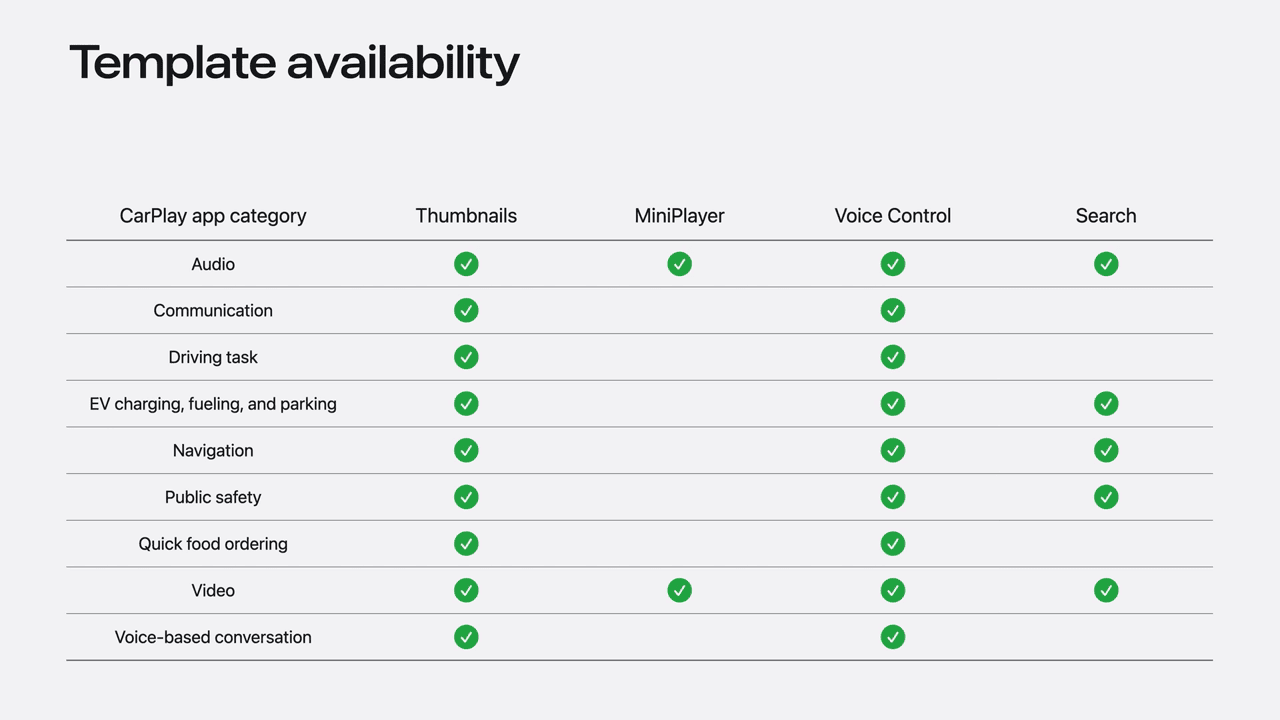
새 기능 넷을 어느 category 가 쓸 수 있는지 정리한 표다. 열은 Thumbnails, MiniPlayer, Voice Control, Search 이고 행은 category 다. 화면의 체크 표시를 옮기면 다음과 같다.
| Category | Thumbnails | MiniPlayer | Voice Control | Search |
|---|---|---|---|---|
| Audio | O | O | O | O |
| Communication | O | O | ||
| Driving task | O | O | ||
| EV charging, fueling, and parking | O | O | O | |
| Navigation | O | O | O | |
| Public safety | O | O | O | |
| Quick food ordering | O | O | ||
| Video | O | O | O | O |
| Voice-based conversation | O | O |
thumbnail 과 voice control 은 전부 쓸 수 있고, MiniPlayer 는 재생이 있는 Audio 와 Video 만 해당한다. 발표자는 자세한 내용을 CarPlay Developer Guide 에서 보라고 한다.
CarPlay Simulator 시연
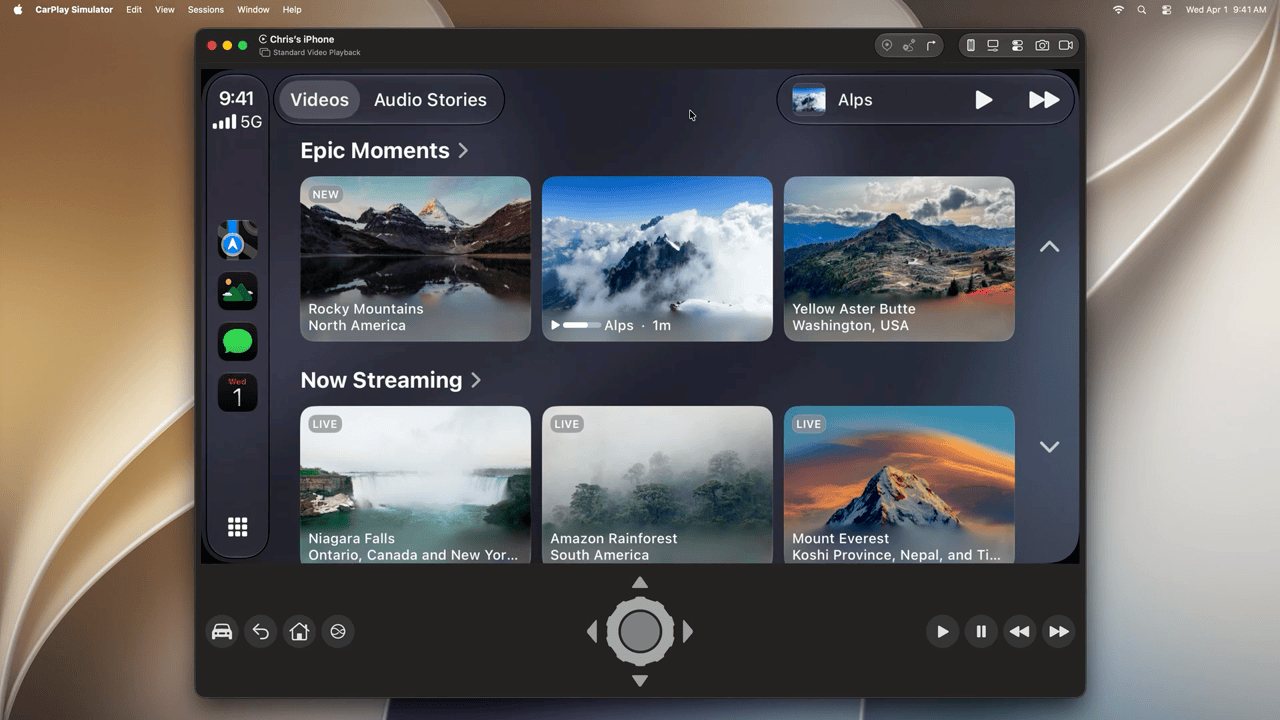
slide 로 본 것을 Mac 의 CarPlay Simulator 에서 이어서 보여 준다. 창 제목은 “Chris’s iPhone” 이고, 연결된 iPhone 의 CarPlay 화면이 Mac 창에 뜬다. 먼저 simulator 를 video 지원 차량으로 설정하고 home screen 에서 Landmarks 를 연다.
 출처: WWDC26 - Rev up your CarPlay app
Landmarks 의 첫 화면이다. 왼쪽 위에 Videos 와 Audio Stories 두 tab 이 있고, 오른쪽 위에 MiniPlayer 가 Alps 를 재생 중으로 보여 주며 play 와 skip button 이 달려 있다. “Epic Moments” 줄에는 가로로 넓은 thumbnail 이 놓였다. Rocky Mountains 에는 NEW badge 가, Alps 에는 진행 막대와 남은 시간 “1m” 이 붙어 있다. 그 아래 “Now Streaming” 줄의 Niagara Falls, Amazon Rainforest, Mount Everest 에는 LIVE badge 가 붙는다.
 출처: WWDC26 - Rev up your CarPlay app
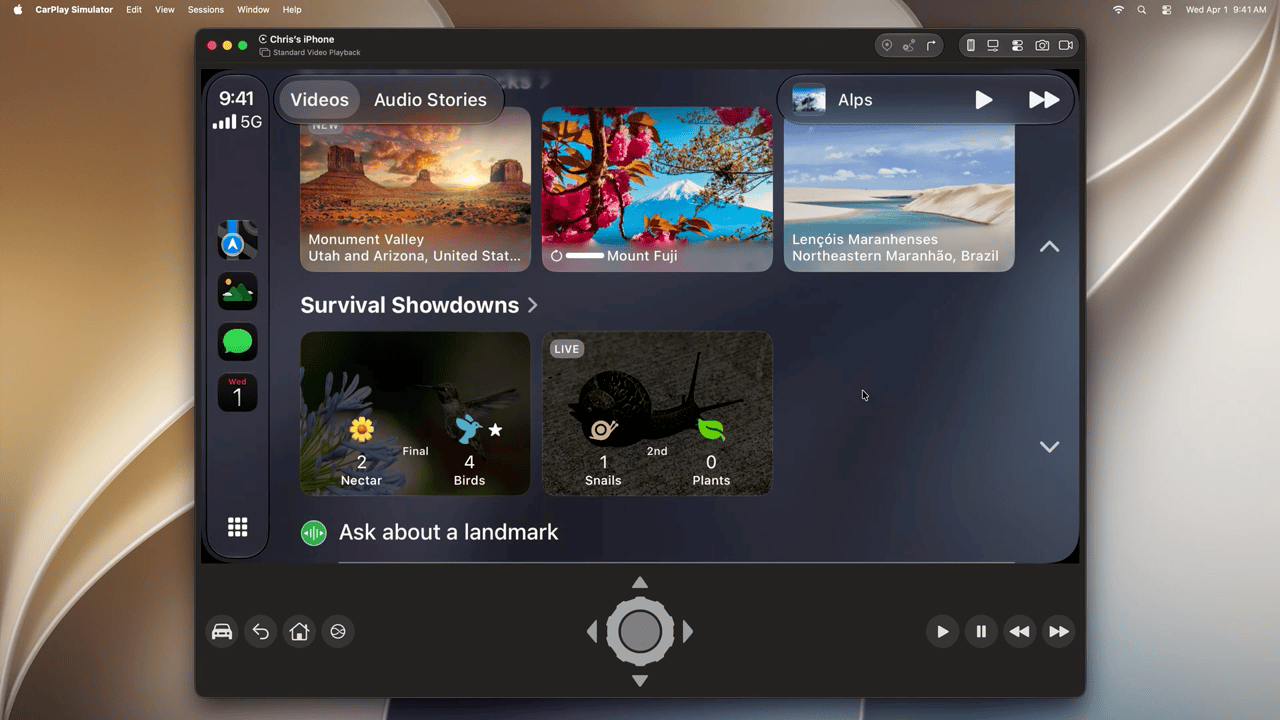
아래로 내린 화면이다. “Survival Showdowns” 줄의 thumbnail 에 sports overlay 가 얹혀 있다. 하나는 “Nectar 2, Final, Birds 4” 이고 다른 하나는 “Snails 1, 2nd, Plants 0” 에 LIVE 표시가 함께 있다.
 출처: WWDC26 - Rev up your CarPlay app
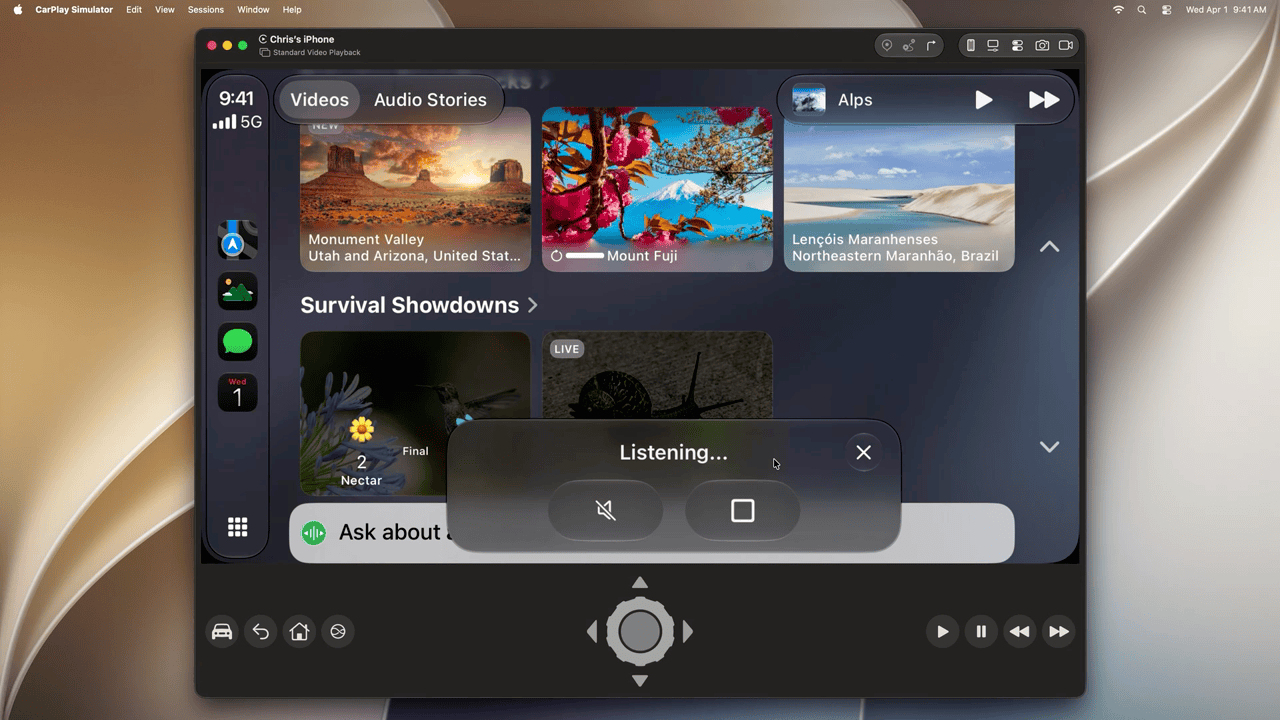
목록의 “Ask about a landmark” 줄을 누른 뒤다. 목록은 그대로 보이고 그 위에 voice control overlay 가 떠 있다. “Listening…” 이라는 글자와 mute, stop button, 닫는 X button 이 있다. overlay 라서 뒤의 browsing 화면이 가려지지 않는다.
 출처: WWDC26 - Rev up your CarPlay app
Rocky Mountains thumbnail 을 고른 화면이다. slide 에서 본 details header 가 실제로 뜬다. thumbnail, “Rocky Mountains”, “North America”, 본문, Play 와 + button 이 위에 있고 아래 “Mountains Series” section 에 Mount Fuji 와 Alps 가 이어진다.
 출처: WWDC26 - Rev up your CarPlay app
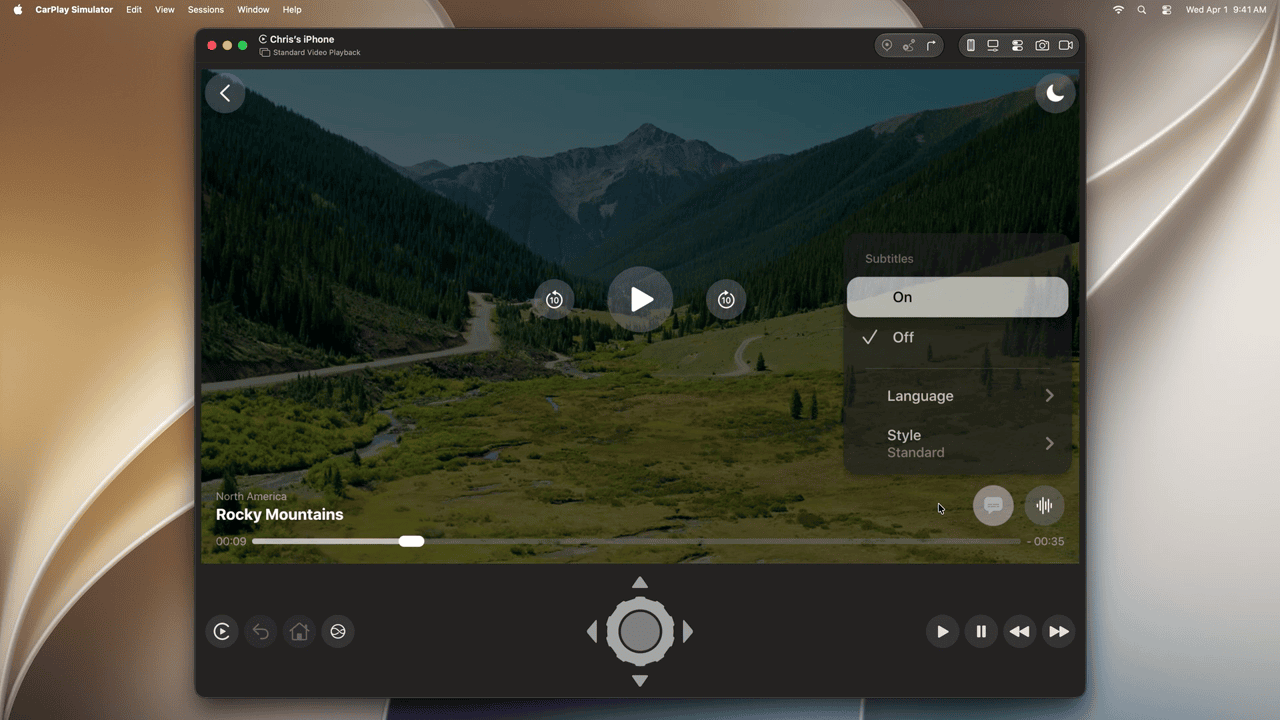
Play 를 눌러 video player 로 넘어간 화면이다. player 는 앱이 만든 것이 아니라 system 이 제공한다. Subtitles 메뉴가 열려 있어 On, Off, Language, Style(Standard) 항목이 보이고, 그 아래에 자막 button 과 audio 언어 button 이 있다. 진행 막대 끝에는 남은 시간 “-00:35” 가 적혀 있다. 발표자는 audio 언어를 English 와 French 사이에서 바꾸고, 오른쪽 위의 Do Not Disturb focus button 도 가리킨다.
앱이 한 일은 browsing 화면을 template 으로 채우고 AirPlay 로 재생을 시작한 것까지다. 자막과 언어 선택, 재생 control 은 따로 만들지 않았다.
Navigation app 의 새 기능
세션의 마지막 3분 반은 navigation app 에만 해당하는 내용이다. 화면 쪽에는 panel 이, 차와의 연동 쪽에는 route sharing 이 생겼다.
Panel
map template 에서 목적지를 미리 보여 주거나 경로를 고르게 하려면 지금까지 trip preview 와 route choice 라는 정해진 흐름을 따라야 했다. panel 은 그 흐름과 무관하게 map template 의 주 영역에 직접 UI 를 올리는 방법이다.
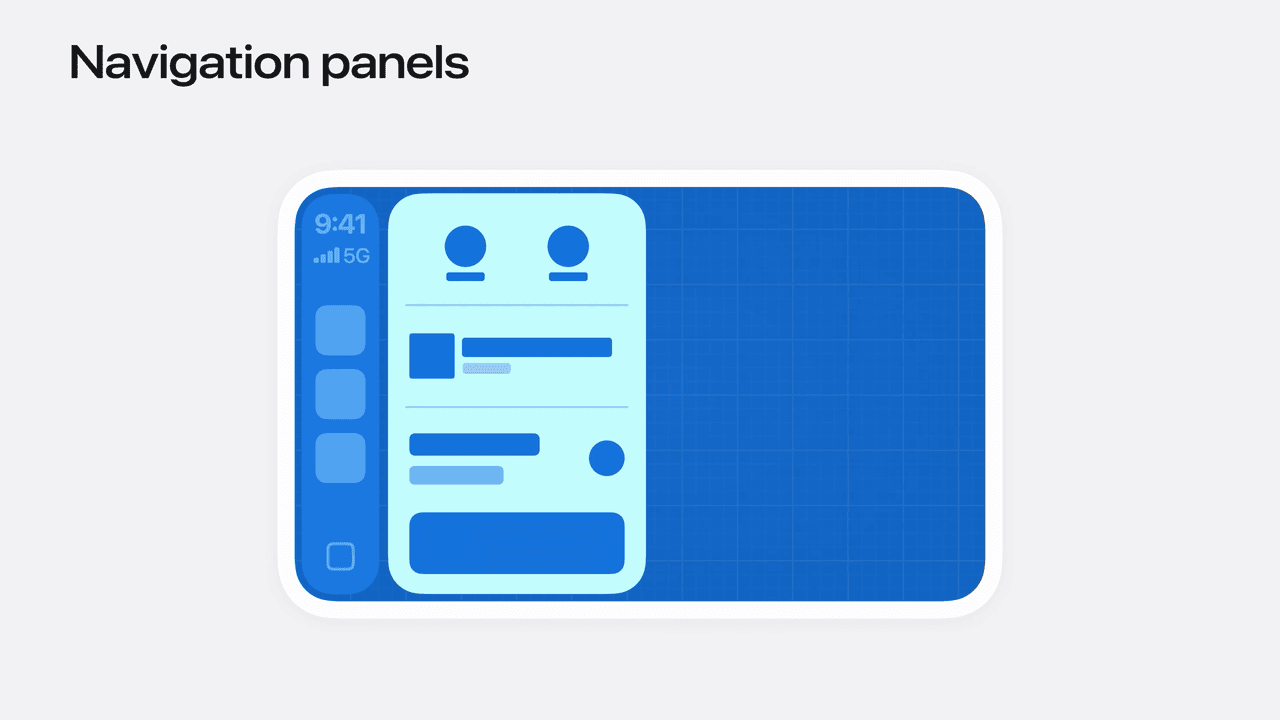 출처: WWDC26 - Rev up your CarPlay app
지도 왼쪽에 panel 이 떠 있는 slide 다. panel 은 item 을 쌓아서 만든다. 발표자가 든 item 종류는 trip, grid, route choice, route detail, waypoint, list item 이다. panel 아래에는 button configuration 으로 “Go” 나 “End” 같은 button 을 둔다. panel 위에 다른 panel 을 push 해서 단계를 이어 갈 수도 있다.
1
2
3
4
5
6
7
8
9
10
11
12
13
14
15
16
17
18
19
20
import CarPlay

@MainActor
func showTripPanel(on mapTemplate: CPMapTemplate, trip: CPTrip, estimates: CPTravelEstimates) {
    let go = CPTextButton(title: "Go", textStyle: .confirm) { _ in }
    let item = CPMapPanelItem(trip: trip) { _, completion in
        completion()
    }
    let section = CPMapPanelSection(title: "Route", items: [item])
    let panel = CPMapPanel(
        title: "Campsite",
        sections: [section],
        buttonConfiguration: CPMapPanelButtonConfiguration(
            primaryAction: go,
            secondaryButton: nil,
            travelEstimates: estimates
        )
    )
    mapTemplate.showPanel(panel) { _, _ in }
}
CPMapPanel
제목, section 배열, button configuration 으로 이루어진다. 보이고 사라지는 시점은 CPMapPanel.Delegate 의 panelDidShow, panelDidHide 로 받는다. 문서는 CPMapPanel 에 있다.
CPMapPanelItem
panel 에 들어가는 한 줄이다. 무엇을 보여 주느냐에 따라 init 이 나뉜다. trip, travel estimates, route choice, route details, charging station connection, map template waypoint 를 각각 받는다. handler 는 item 과 completion block 을 받고, 처리가 끝나면 completion 을 불러야 한다. 문서는 CPMapPanelItem 에 있다.
CPMapPanelButtonConfiguration
panel 아래의 button 영역이다. primary action 은 CPTextButton, secondary 는 CPButton 이고, travel estimates 를 주면 primary action 옆에 함께 표시된다. 문서는 CPMapPanelButtonConfiguration 에 있다.
showPanel(_:completion:)
map template 에 panel 을 띄운다. 그 위에 쌓을 때는 pushPanel, 되돌릴 때는 popPanel, 전부 내릴 때는 hidePanel 을 쓴다. 넷 다 iOS 27.0 부터 있다. 문서는 [showPanel(:completion:)](https://developer.apple.com/documentation/carplay/cpmaptemplate/showpanel%28:completion:%29){:target=”_blank”} 에 있다.
세션은 panel 의 code 를 보여 주지 않았다. 위 code 는 header 의 init 을 조합한 최소 구성이다.
Route sharing 이란?
route sharing 은 navigation app 이 계산한 경로를 차에 넘겨주는 기능이다. 차는 그 경로를 받아 자동 차선 변경 같은 운전자 보조에 쓰고, 전기차라면 남은 거리와 battery 를 보고 충전 정차를 제안한다. 발표자는 iOS 26.4 이상과 이 기능을 지원하는 차가 필요하다고 말한다.
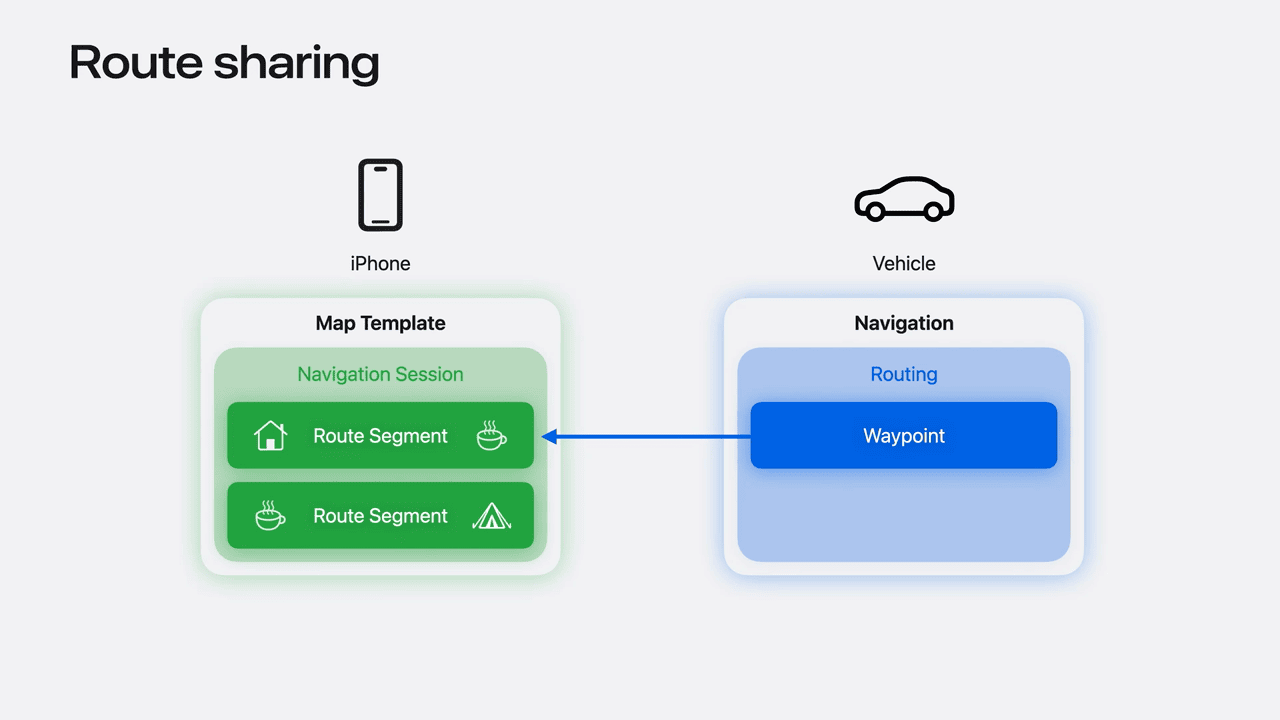
경로는 통째로 넘기지 않고 route segment 의 배열로 넘긴다. segment 는 한 지점에서 다음 지점까지의 구간이고 좌표 목록을 가진다. trip 이 바뀔 때마다 앱은 segment 를 다시 보낸다.
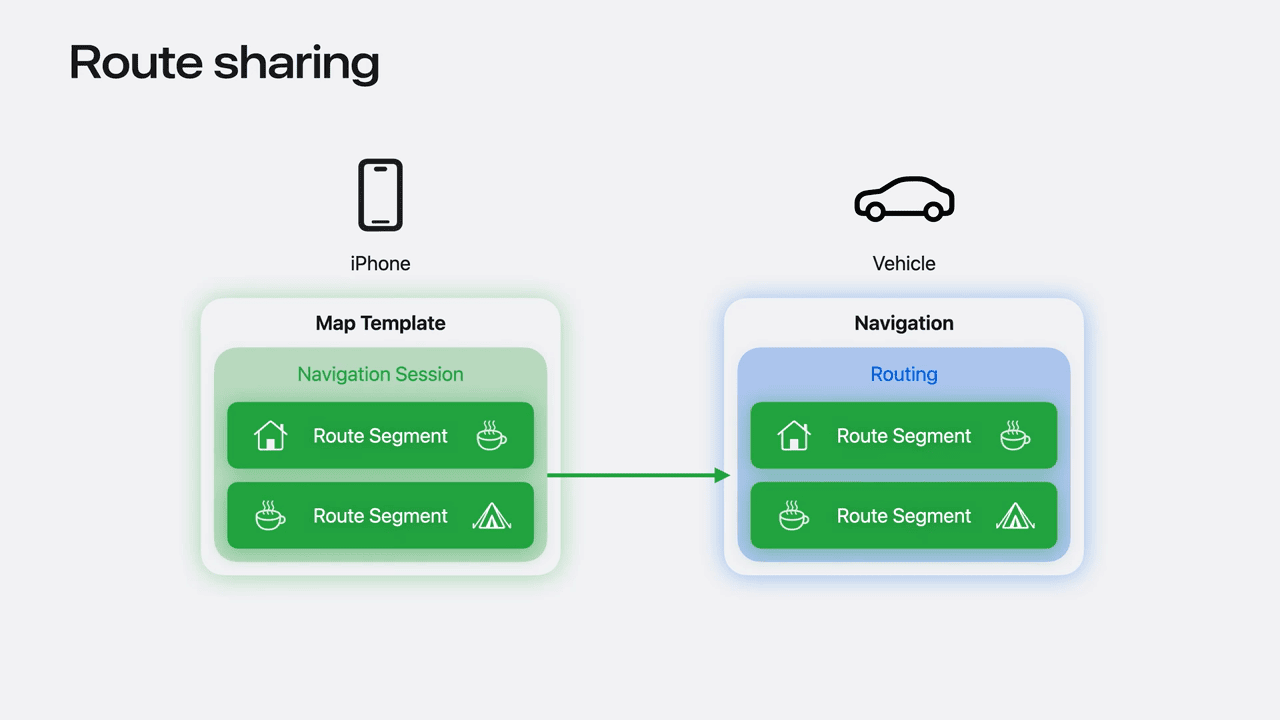 출처: WWDC26 - Rev up your CarPlay app
예시로 든 여정이다. 출발지에서 커피숍을 거쳐 캠핑장까지 가는 경로가 segment 2개로 나뉘어 iPhone 에서 차로 넘어간다.
 출처: WWDC26 - Rev up your CarPlay app
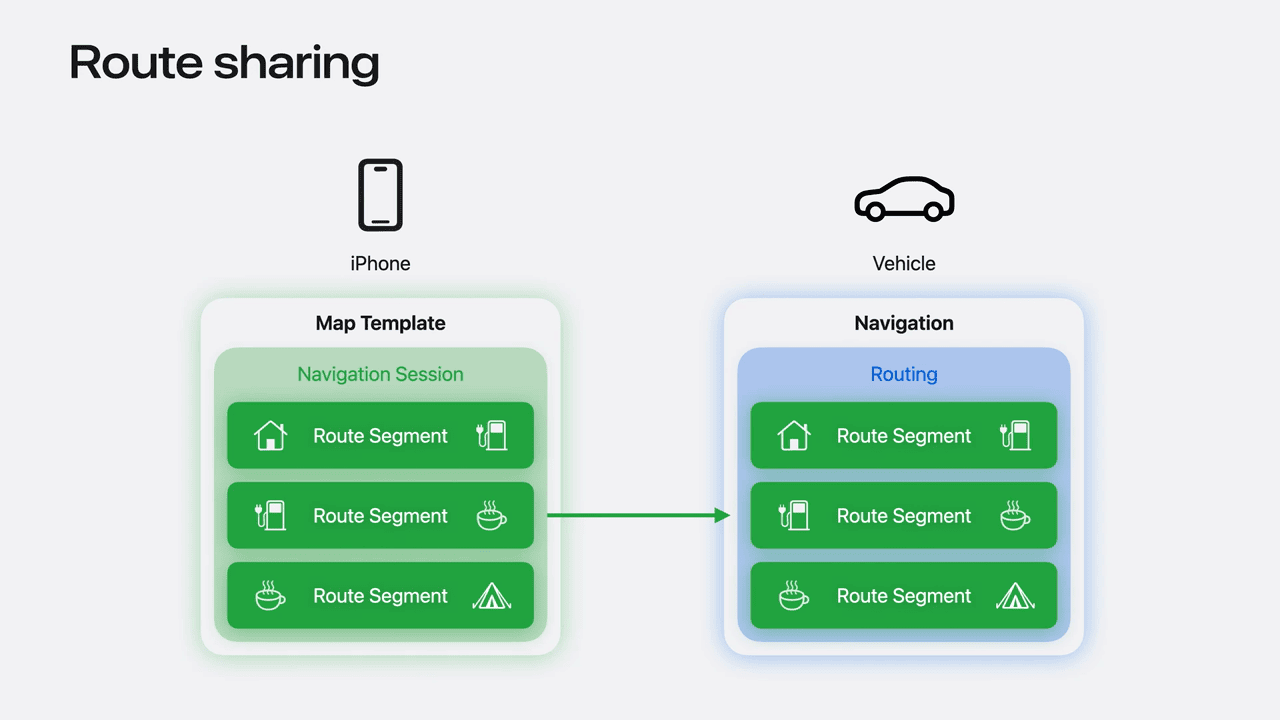
차가 응답하는 장면이다. 전기차가 경로를 보고 중간에 충전이 필요하다고 판단해, 충전소 waypoint 를 iOS 로 돌려보낸다. 앱은 이것을 map template 의 delegate 로 받는다.
여기서 앱이 고를 길이 둘 있다고 발표자는 설명한다. travel estimates 를 돌려주면 map template 이 운전자에게 “이 정차를 추가할지” 를 묻는 prompt 를 대신 띄운다. 돌려주지 않으면 확인 과정을 앱이 직접 처리한다.
 출처: WWDC26 - Rev up your CarPlay app
운전자가 수락한 뒤다. 앱이 충전소를 경유지로 넣어 경로를 다시 계산했고 segment 가 3개가 됐다. 앱은 이 3개를 다시 차와 공유한다.
1
2
3
4
5
6
7
8
9
10
11
12
13
14
15
16
17
18
19
20
21
22
23
24
25
26
27
28
29
30
31
32
33
34
35
36
37
38
import CarPlay

final class RouteCoordinator: NSObject, CPMapTemplateDelegate {

    func mapTemplateShouldProvideRouteSharing(_ mapTemplate: CPMapTemplate) -> Bool {
        true
    }

    func mapTemplate(
        _ mapTemplate: CPMapTemplate,
        didRequestToInsert waypoint: CPNavigationWaypoint,
        into segment: CPRouteSegment,
        completion: @escaping (CPTravelEstimates) -> Void
    ) {
        let estimates = CPTravelEstimates(
            distanceRemaining: Measurement(value: 12, unit: UnitLength.kilometers),
            timeRemaining: 900
        )
        completion(estimates)
    }

    func mapTemplate(
        _ mapTemplate: CPMapTemplate,
        waypoint: CPNavigationWaypoint,
        accepted: Bool,
        forSegment segment: CPRouteSegment?
    ) {
        guard accepted else { return }
        // 경유지를 넣어 경로를 다시 계산하고 segment 를 다시 공유한다
    }
}

@MainActor
func makeTrip(origin: CPNavigationWaypoint, destination: CPNavigationWaypoint, sharesRoute: Bool) -> CPTrip {
    let trip = CPTrip(originWaypoint: origin, destinationWaypoint: destination, routeChoices: [])
    trip.routeSegmentsAvailableForRegion = sharesRoute
    return trip
}
mapTemplateShouldProvideRouteSharing(_:)
앱이 route sharing 에 참여할지를 답한다. true 를 돌려주는 것이 opt-in 이다. 세션 page 의 snippet 이 이 한 줄이다. 문서는 [mapTemplateShouldProvideRouteSharing(:)](https://developer.apple.com/documentation/carplay/cpmaptemplatedelegate/maptemplateshouldprovideroutesharing%28:%29){:target=”_blank”} 에 있다.
routeSegmentsAvailableForRegion
trip 하나만 공유에서 빼고 싶을 때 false 로 둔다. header 는 “해당 지역에서 route sharing 을 지원하지 않을 때” 쓰라고 설명한다. 지도 data 의 정밀도가 지역마다 다른 앱을 염두에 둔 것으로 읽힌다. 문서는 routeSegmentsAvailableForRegion 에 있다.
CPRouteSegment
origin, destination, maneuver, lane guidance, 좌표 목록을 가진 구간 하나다. 안내 중에는 CPNavigationSession 의 addRouteSegments(_:) 로 더하고, 경로가 바뀌면 resumeTrip(updatedRouteSegments:currentSegment:rerouteReason:) 으로 갱신한다. 문서는 CPRouteSegment 에 있다.
CPNavigationWaypoint
route sharing 에서 쓰는 지점 type 이다. 중심 좌표와 이름, 주소, entry point 를 가진다. CPTrip 의 기존 init 은 MKMapItem 을 받았는데 iOS 26.4 에서 deprecated 됐고, waypoint 를 받는 init(originWaypoint:destinationWaypoint:routeChoices:) 가 그 자리를 대신한다. 문서는 CPNavigationWaypoint 에 있다.
code 를 쓰면서 발표와 어긋나 보이는 곳이 하나 있었다. 발표자는 travel estimates 를 “돌려주지 않을 수도 있다” 고 했는데, SDK 의 didRequestToInsert 는 completion 이 nullable 이 아닌 CPTravelEstimates 를 받는다. nil 을 넘길 수 없으니 “돌려주지 않는다” 는 것은 completion 을 부르지 않는다는 뜻으로 보인다.
권한은 두 단계다. 운전자는 차를 처음 pairing 할 때 route sharing 을 승인하고, 이 승인은 그 차에 연결되는 모든 navigation app 에 적용된다. 앱은 위의 delegate method 로 참여 여부를 정한다. 운전자가 꺼 둔 차에서는 앱이 true 를 돌려줘도 공유되지 않는다.
세션의 마무리
 출처: WWDC26 - Rev up your CarPlay app
“Test with CarPlay Simulator” 라는 제목의 slide 이고 “Included in Device Hub” 라고 적혀 있다. CarPlay Simulator 는 화면 크기와 차량 구성을 바꿔 가며 앱을 시험하는 도구이고, route sharing 을 진단하는 기능도 들어 있다. 발표자는 video app 을 만드는 개발자라면 Additional Tools for Xcode package 에 든 CarPlay Simulator 를 쓰라고 따로 덧붙인다.
 출처: WWDC26 - Rev up your CarPlay app
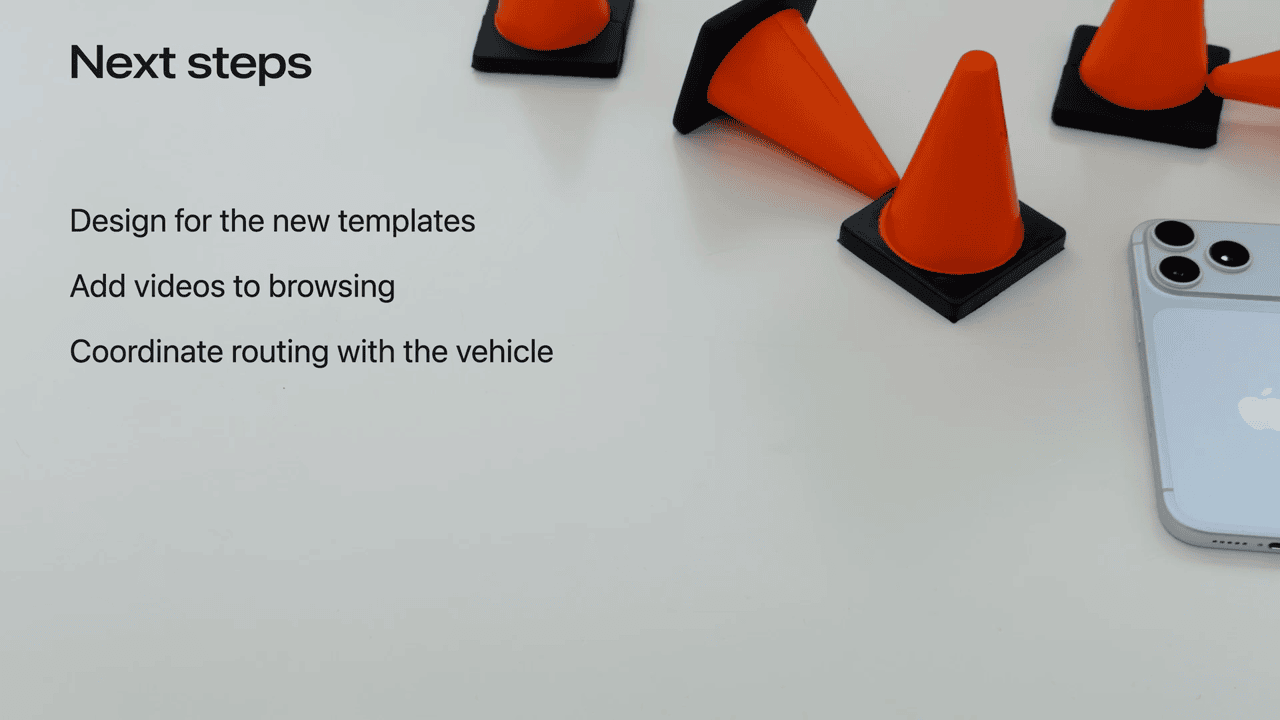
마지막 slide 의 세 줄이다. “Design for the new templates”, “Add videos to browsing”, “Coordinate routing with the vehicle”. 새 template 요소로 화면을 다시 짜고, video 가 있는 앱은 browsing 에 넣고, navigation app 은 차와 경로를 맞추라는 정리다.
정리
세션은 전부 “iOS 27 의 새 기능” 처럼 소개하지만 SDK header 의 availability 는 둘로 갈린다. 아래 표의 version 은 Xcode 27.0 의 header 에서 읽은 것이다.
| 기능 | API | 시작 version |
|---|---|---|
| video 지원 확인 | CPSessionConfiguration.supportsVideoPlayback | 26.4 |
| thumbnail 과 overlay | CPThumbnailImage, CPImageOverlay, CPSportsOverlay | 26.4 |
| 재생 진행 상태 | CPPlaybackConfiguration | 26.4 |
| details header | CPListTemplateDetailsHeader, CPListTemplate.listHeader | 26.4 |
| voice control 의 button | CPVoiceControlState.actionButtons | 26.4 |
| route sharing | mapTemplateShouldProvideRouteSharing(_:), CPRouteSegment, CPNavigationWaypoint | 26.4 |
| MiniPlayer 끄기 | CPNowPlayingTemplate.allowsMiniPlayer | 27.0 |
| overlay 로 띄우기 | showOverlayTemplate(_:animated:completion:) | 27.0 |
| panel | CPMapPanel, showPanel(_:completion:) | 27.0 |
실제 프로젝트에 가져갈 점은 다음과 같다.
- video 가 있는 앱은 AirPlay video streaming 부터 확인한다. 그것이 되면 CarPlay 쪽 작업은 browsing 화면뿐이다.
- 소리만으로도 성립하는 content 라면 audio 와 video entitlement 를 둘 다 넣는다. video entitlement 만으로는 지원 차량에서만 앱이 보인다.
- videos tab 은
supportsVideoPlayback을 보고 넣는다. 다만 이 값이true여도 주행 중에는 audio 만 나올 수 있다. - 재생 위치가 바뀌면
playbackConfiguration을 다시 넣는다. 한 번 넣고 두면 progress bar 가 따라오지 않는다. - details header 의 “Resume” 은 직접 만들지 않는다. playback configuration 을 넣으면 첫 button 이 알아서 바뀐다.
- MiniPlayer 는 자동이다. 화면 위쪽에 직접 넣어 둔 now playing button 이 있다면 겹치는지 본다.
- voice control overlay 에는 짧은 title variant 를 같이 넣는다.
- route sharing 은 delegate method 하나로 opt-in 하지만, 차가 보낸 waypoint 를 받아 경로를 다시 계산하는 쪽이 실제 작업이다.